NOTE: The processes described below are managed entirely outside of Actionstep, which means the instructions may not be up to date based on changes Google may be making to their products. If there are discrepancies between what's shown below and your experience, refer to Google's help. Ultimately, you are searching in Google's Marketplace for the Actionstep add-on and installing it based on the options they provide.
The Actionstep Gmail add-on allows Gmail users to save and assign emails to their Actionstep matters. When saved, the email message and attachments become available in the corresponding matter in Actionstep. Additionally, the add-on provides basic information on parties, file notes, and tasks. It also provides links to access the information in your Actionstep system directly.
The Gmail add-on can enabled for individual Google accounts or from the Google Workspace Admin Console by the Gmail account administrator.
Installing the Add-on for Individual Users
To do this:
- Sign in to your Gmail account.
- Click the Settings icon. (It looks like a gear or cog.) The Settings page appears.
- Click the Add-ons tab.
- Under Installed add-ons, click Manage. The Google Workspace Marketplace page appears.
- In the Search apps box, enter Actionstep.
- On the Actionstep tile that appears, click Install and confirm the installation by clicking Continue.
- Follow the onscreen prompts to sign in to your Google account.
Installing the Add-on Firm-wide
To do this:
- Sign in to the Google Workspace Admin Console as the administrator. (For full instructions, check the Google help.)
- Click the Settings icon in the top-right corner of the console window (it looks like a gear or cog) and choose Manage this domain.
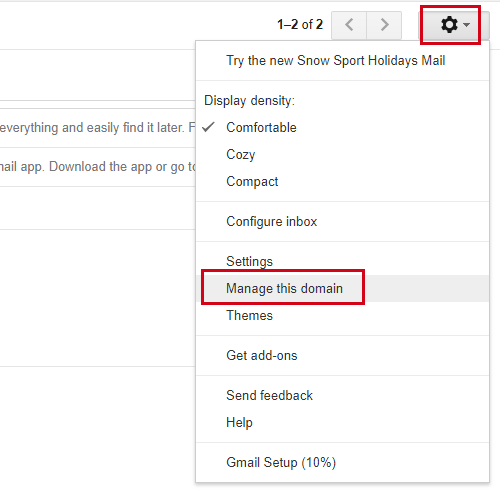 The Admin Console appears.
 - Browse to Marketplace Apps. A page showing all your currently installed add-ons is displayed. (Check the Google Admin Console help for instructions if you're not sure how to do this.)
- Click the add icon.
- Search for and select Actionstep. You will see options that allow you to perform either a Domain Install or Individual Install.
- Domain Install allows you, as the admin, to install the add-on for all users within your system. You can enable the add-on for individual users from within the Admin Console.
- Individual Install allows each individual user within your system to find the add-on on Google Marketplace and install it within their Google Apps console.
NOTE: To use the Gmail add-on, you must also set up Gmail within Actionstep. See Setting Up a System Email Mailbox (Admin) or Setting Up Personal Email Mailboxes for complete instructions.
Additional Resources:
Was this article helpful?
That’s Great!
Thank you for your feedback
Sorry! We couldn't be helpful
Thank you for your feedback
Feedback sent
We appreciate your effort and will try to fix the article