You can review a list of phone calls you've recorded information for. You can either view a list of all recorded calls across the firm, or you can view calls associated with a specific matter.
While viewing the list, you can edit the details about a call, or remove the call from the list.
To review phone calls:
- Choose whether you want to view a complete list of calls, or only those calls associated with a specific matter:
- To view all phone calls, go to Comms > Phone Calls. The Phone Calls page appears.
- To view phone calls associated with a matter, edit a matter (see Editing a Matter for help). Then hover over the Comms menu and select Phone Calls. The page is updated to show all of the phone calls associated with the matter.
- Complete any of the following optional tasks while reviewing the information:
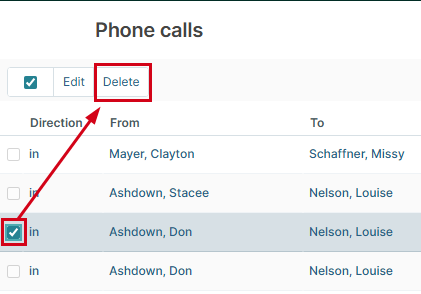
- To remove a phone call from the record, select its checkbox and click Delete.
- Filter the list by clicking the Filter menu and choosing Show Available Filters.)
- Hover over the Filter menu and choose other filtering options, like Clear Filter, Default Filter, Save Current Filter, and Reset layout to default.
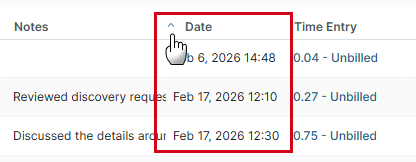
- Sort the information in the list by clicking the column title you want to sort on.
- Check for any updated information in the list by clicking the Refresh icon.
- To remove a phone call from the record, select its checkbox and click Delete.
Was this article helpful?
That’s Great!
Thank you for your feedback
Sorry! We couldn't be helpful
Thank you for your feedback
Feedback sent
We appreciate your effort and will try to fix the article