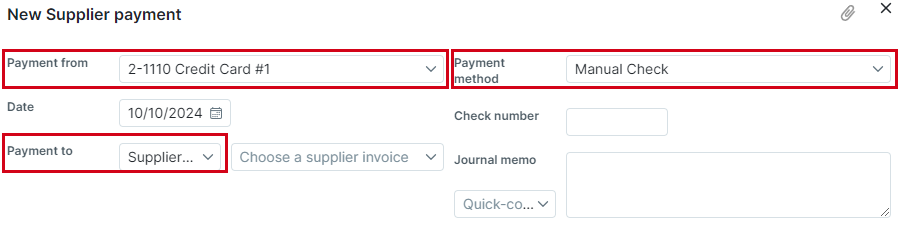
You can set up the default options that will be suggested for users creating supplier payment transactions.
CAUTION: These instructions guide you to an area of Actionstep Accounting setup that references Firm Withdrawal settings. This group of settings is labeled incorrectly. These instructions affect supplier payments only.
To set up your supplier payment default options:
- In Actionstep, go to Admin > Accounting. The Accounting page appears.
- Click Edit in the Accounting preferences section. The Accounting System Preferences page appears.
- In the Firm withdrawal section (this is the section that is incorrectly named), provide the following:
- Default bank account: Click this drop-down list and choose the bank account you want to suggest for your users.
- Default 'payment for': Click this drop-down list and choose your default method for new payments.
- Default payment method: Click this drop-down list and choose the default method for processing the payment.
- Click Save to save your changes.
Now, when your users create supplier payments, these options will be displayed by default. (They can still change them, if needed.)
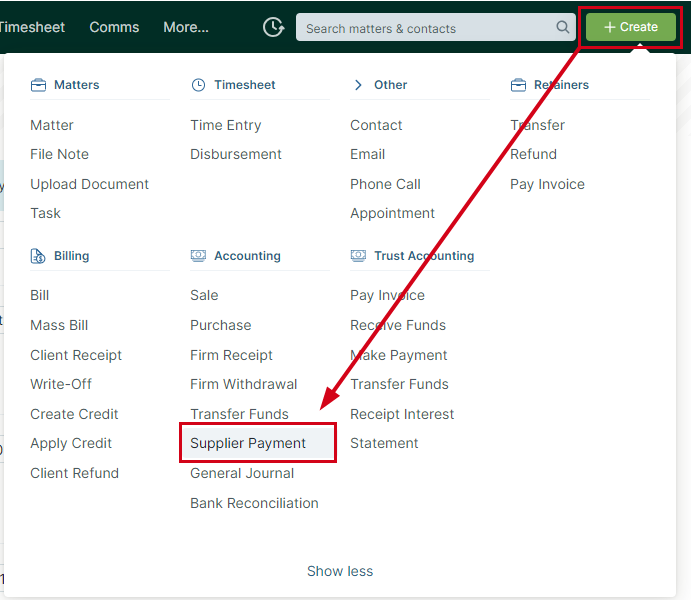
TIP: To create a supplier payment, click the global Create button and choose Supplier Payment from the Accounting group.
Additional Resources:
- Paying a Supplier Invoice/Vendor Invoice
- Creating a Firm Withdrawal
- Entering Disbursements from a Firm Withdrawal
Was this article helpful?
That’s Great!
Thank you for your feedback
Sorry! We couldn't be helpful
Thank you for your feedback
Feedback sent
We appreciate your effort and will try to fix the article