Actionstep offers an integration with Xero that allows you to do your billing, trust/client accounting and general matter management in Actionstep and have all your accounting information automatically updated in Xero.
Setting Up the Integration
There are two stages to integrating Xero with the native accounting options in Actionstep Practice Management:
Since both Actionstep and Xero use their own general ledger, currencies, and sales taxes, it is essential you map fields between the two together. By doing this, you ensure that a transaction in Actionstep that is coded to a general ledger account with a certain amount of tax is processed in Xero with the correct general ledger account and tax code.
Part 1: Authorizing Actionstep with Xero
An admin user in both Actionstep and Xero must authorize Xero to allow Actionstep to post transactions to it. This process is started with Actionstep.
To authorize the integration:
- In Actionstep, go to Admin > Accounting. The Accounting page appears.
- Click Connect to Xero in the Related settings list located on the right side of the page.
- Follow the on-screen prompts to create the connection. It may take a few minutes to update with details from Xero. You will then be redirected back to the Xero mapping page in Actionstep.
Part 2: Mapping Actionstep and Xero
During the mapping process, you will map accounts in Actionstep to the equivalent account in Xero.
To do this:
- In Actionstep, go to Admin > Accounting. The Accounting page appears.
- Click Edit next to Xero Mapping. The Xero Integration Configuration page appears.
The Xero GL Account Reference list on the right side of the page shows all the general ledger (GL) accounts from your Xero account. As you map these accounts, they will be crossed out so you can see what has been mapped and what hasn't.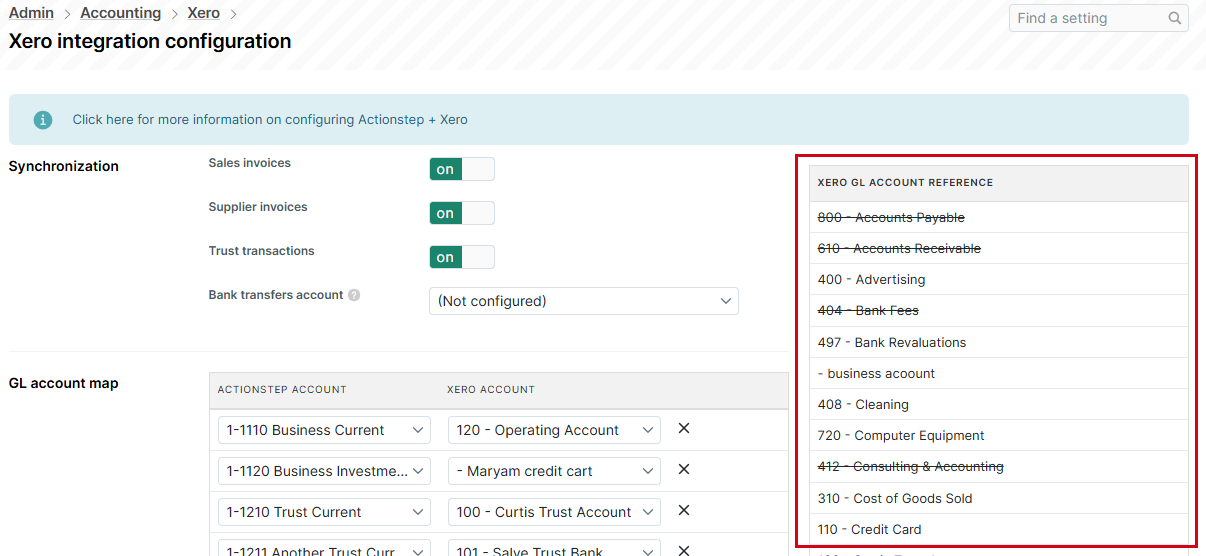
- In the Synchronization section, choose what types of transactions you want to post to Xero:
- Sales invoices: Toggle this option to on to allow sales invoices to be pushed through to Xero. This includes payments made to those invoices or credit notes for those invoices.
- Supplier invoices: Toggle this option to on to allow supplier/vendor invoices to be pushed through to Xero. This includes invoices, any payments made to those invoices, or credit notes for those invoices. NOTE: Not all users will enable this with their Xero integration, instead preferring to enter their expenses directly into Xero. However, if you want to enter supplier/vendor invoices into Actionstep to bill the expense onto a customer, you will need to switch this on.
- Trust transactions: Toggle this option to on to allow any trust/client account transactions that you create in Actionstep to be pushed through to Xero. NOTE: You do not need to complete trust/client account reconciliations or any other transactions within Xero. Instead, it's expected that your trust/client account compliance will be completed in Actionstep. Therefore, it is uncommon for option to be used.
- Bank transfers account: Click this drop-down list to choose a bank transfers account. Since Actionstep and Xero handle the transfer of funds slightly differently, it is worthwhile to use this account.
- In the GL account map section, do the following:
- Click Add row. An empty row of drop-down fields is added.
- Click the first drop-down list and choose your Actionstep Account.
- Click the second drop-down list and choose the corresponding Xero Account. NOTE: As you map these items, you'll note that some are required and some are not. You can save time by mapping only the important accounts. For example, if you don't need to sync trust/client account transactions, you do not need to map your trust/client bank accounts. Similarly, if you are mapping your expenses, only map those you are likely to use. As a rule of thumb, map your bank and income accounts as well as your accounts receivable. See Detailed Explanation of Xero Mapping for Actionstep's Native Accounting for more details.
- Repeat this process for each account.
- In the GST / Sales Tax / VAT map section, follow the instructions in Step 4 and select an Actionstep Code and map it to the Xero Input Tax and Xero Output Tax.NOTE: Input Tax refers to tax paid on your purchases and should be mapped to your expenses taxes. Output Tax refers to tax on the sales and should be mapped to your income taxes.
- In the Currency map section, use the drop-down lists to map your Actionstep Currency and Xero Currency.
- Click Save to save your changes.
Detailed Explanation of Xero Mapping
This section ides a more detailed breakdown of the accounts you can map between Actionstep to Xero.
| Actionstep Account to Select | How It Should Be Mapped |
| All business bank accounts | The appropriate bank account in Xero. Please note this Xero bank account must have an account reference number (e.g., "001"). Xero does not require one when the account is related but it will be required when mapping to Actionstep. |
| All trust/client bank accounts | Map to the corresponding Xero bank account. |
| Trust liability | You may need to create this account in your Xero Chart of Accounts as a Liability Account that allows payments. This is not a standard Xero account. |
| Trust transfers | You may need to create this account in your Xero Chart of Accounts as a Liability Account that allows payments. This is not a standard Xero account. |
| Trust paid by firm This option applies to firms that are in a jurisdiction that allows a firm's interest in trust (e.g., firms operating trust accounts in New Zealand). | If you will be using the Paid by Firm function in your trust accounts (making payments on behalf of the client before funds are received) then this account will have to be mapped. You may need to create this account in your Xero Chart of Accounts as an Asset Account that allows payments. This is not a standard Xero account. |
| Statutory deposit account This option applies to firms that are required to transfer a portion of their trust funds to a Statutory Deposit Account. | If applicable, this account will need to be mapped. Even though the account appears as a bank account in Actionstep, it should be linked to a matching Current Asset account in your Xero Chart of Accounts. |
| Accounts receivable | This should be mapped to the appropriate accounts in Xero. They will likely have a similar name in Xero. |
| Accounts payable | This should be mapped to the appropriate accounts in Xero. They will likely have a similar name in Xero. |
| Deposits paid | This account can be mapped to the Tracking Transfers Account in Xero. (The Tracking Transfers Account should be a standard account in your Xero Chart of Accounts.) |
| Deposits Received | This can be mapped to the Tracking Transfers Account in Xero. (The Tracking Transfers Account should be a standard account in your Xero Chart of Accounts.) |
| Sales Tax Collected | This can be mapped to the Sales Tax account on your Xero Chart of Accounts. This might be called "GST" or "VAT" in Xero depending on your country. |
| Sales Tax Collected Adjustment | This and all Sales Tax accounts can be mapped to the Sales Tax account on your Xero Chart of Accounts. This might be Called "GST" or "VAT" in Xero depending on your country. |
| Sales Tax Paid | This and all Sales Tax accounts can be mapped to the Sales Tax account on your Xero Chart of Accounts. This might be Called "GST" or "VAT" in Xero depending on your country. |
| Sales Tax Paid Adjustment | This and all Sales Tax accounts can be mapped to the Sales Tax account on your Xero Chart of Accounts. This might be Called "GST" or "VAT" in Xero depending on your country. |
| Sales Tax Payments/Refunds | This and all Sales Tax accounts can be mapped to the Sales Tax account on your Xero Chart of Accounts. This might be Called "GST" or "VAT" in Xero depending on your country. |
| Income Accounts | All income accounts such as "Fees" and "Disbursements" and "Other Income" should be mapped across to the equivalent "Income" account in Xero. |
| Expense Accounts | If you are configuring Actionstep to allow supplier invoices to be sent to Xero, then you will also want to map each of the expense accounts. You do not have to map these if you will not be entering supplier invoices into Actionstep. |
Was this article helpful?
That’s Great!
Thank you for your feedback
Sorry! We couldn't be helpful
Thank you for your feedback
Feedback sent
We appreciate your effort and will try to fix the article