The global setting for contact and matter numbering is configured in Legal Accounting (Admin > Firm > Settings > File) before you start using the system.

Configuring File Numbering by Contact
Contact records will auto-increment by 1 based on the last one created. For example, the next contact created after John Smith (contact# 25) will be assigned contact# 26.
Additionally, all matters created for those contact records will inherit the contact number as a prefix. For example, the matter number for John Smith (contact# 25) will be numbered 25-001. Additional matters for John Smith will be 25-002, 25-003, etc.
Configuring File Numbering by Firm
Contact records will auto-increment by 1 based on the last one created. For example, the next contact created after John Smith (contact# 25) will be assigned contact# 26.
Matter record numbers will also be auto-incremented by 1 based on the last one created, but is not dependent on the contact number. For example, if the next matter number in the sequence is #12345, when creating a matter for John Smith (contact# 25), the matter number will be #12345 and the next matter in the system will become 123456 regardless of which client it is created for.
Using Separate Numbering Sequences for Clients, Vendors, and Other Contact Types
If you enable Allow separate Contact number sequences in Practice Management & Legal Accounting, you can select from three distinct numbering streams to use for numbering: clients, vendors, and other contacts. If this option is not enabled, all contacts created in Practice Management will be assigned a client number based on the client number sequencing.
- Client: John Smith #25
- Vendor: ABC Consulting #V~123
- Other: Bob Smith O~456 or #B~123
Defining the Contact Number in Practice Management for a New Contact
The Reference field in Practice Management is used by the system for the contact number.
When a contact is created and saved in Practice Management without a Reference# being defined, the system will auto-number the contact based on the next available number in the sequence.
If you specify a contact# to be used in the Reference field, upon saving, the system will validate if that number is in use by another contact before it synchronizes and creates the contact in Legal Accounting. If the number is available, the contact will be created in Legal Accounting and synchronized. If the number is not available, the system will save the contact in Practice Management and the Status Indicator on the record will turn Red to highlight an issue with the record. Please note, the Reference number cannot contain "*" or spaces. To understand why a record has a red status, hover over the status indicator with the mouse for a description of the problem.
For example, the next contact# to be created is #26, but someone manually defines the next contact as #36, this creates a gap in the numbering and the system will advance to #37 from there on. If you attempt to correct the gap by creating the next contact as #27 manually, the system will attempt to advance the number to #28, #29 and so forth so long as they are not used
Changing Contact Numbers in Practice Management for Existing Contacts
Changing a Contact# in Practice Management requires selecting Edit on the record, adjusting the existing Reference# with the desired number and saving. (Please note, the Reference number cannot contain "*" or spaces.)
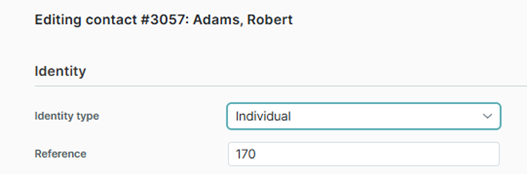
Upon saving the Contact number change, the system will validate if that number is in use by another Contact before it synchronizes with Legal Accounting. If the number is available, the contact will be synchronized. If the number is not available, the system will save it in Practice Management and the Status Indicator on the record will turn red to highlight an issue with the record. To understand why a record has a red status, hover over the status indicator with the mouse for a description of the problem.
Be aware when you manually define the Reference# (Contact#), you are also resetting the numbering sequence from that point and the system will look for the next increment from there. The system will not create duplicate contact numbers, but if you have gaps in your numbering stream or someone advances your numbering stream, the system will increment from there on. If you choose, you can create the next contact and define the next number that the system should use to set the sequence again.
Defining Matter Numbers in Practice Management for New Matters
The Reference field in Practice Management is used by the system for the matter number.
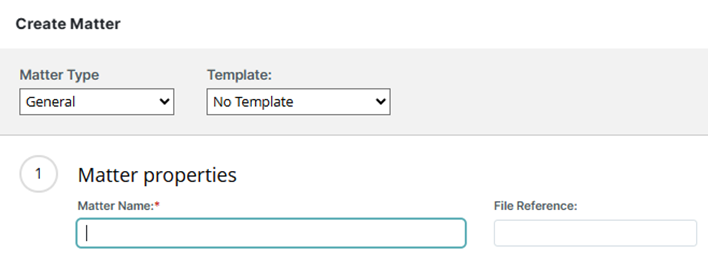
When a matter is created and saved in Practice Management without a Reference# being defined, the system will auto-number the matter based on the next available number in the sequence.
If you specify a Matter# to be used in the Reference field, upon saving, the system will validate if that number is in use by another matter before it synchronizes and creates the matter in Legal Accounting. If the number is available, the matter will be created in Legal Accounting and synchronized. If the number is not available, the system will save the matter in Practice Management and the status Indicator on the record will turn red to highlight an issue with the record. (Please note, the Reference number cannot contain "*" or spaces.) To understand why a record has a red status, hover over the status indicator for a description of the problem.

If you number by Contact, the matter numbering for that contact only is impacted by the numbering change and it could go out of sequence depending on the change applied.
Changing Matter Numbers in Practice Management for Existing Matters
Changing the matter number in Practice Management requires selecting the information icon next to the matter name and selecting Edit to open the Matter properties page. This allows you to adjust the existing Reference# with the desired number. (Please note, the Reference number cannot contain "*" or spaces.)
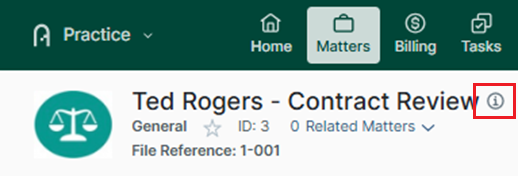
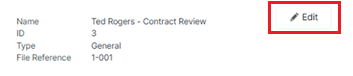
Once you save the update, the system will validate if that number is in use by another matter before it synchronizes with Legal Accounting. If the number is available, the change will be synchronized. If the number is not available, the system will save it in Practice Management and the status indicator on the record will turn red to highlight an issue with the record. To understand why a record has a red status, hover over the status indicator with the mouse for a description of the problem.

If you number by contact, the matter numbering for that contact only is impacted by the numbering change and it could go out of sequence depending on the change applied.
Setting the Contact Number in Legal Accounting on Create Contact
When creating contacts in Legal Accounting, you cannot manually define the number to be used, however you are able to use the Change Contact Number function in Legal Accounting to change the numbers on existing records.
Setting the Matter Number in Legal Accounting
Matters can only be created in Practice Management and synchronized with Legal Accounting; however, you can use the Change File Number function in Legal Accounting to change the numbers on existing records.
Changing Contact Numbers in Legal Accounting for Existing Contacts
To do this:
- Look up the record in Contact Manager
- Scroll down on the page and expand the section for Other.
- Select Change Contact Number.
- Enter the desired number.
- Click Save. (Please note, the system will not accept the change if the number is already assigned.)
Changing Matter Numbers in Legal Accounting for Existing Matters
To do this:
- Look up the record in File Manager.
- Scroll down the page and expand the section for Other.
- Select Change File Number.
- Enter the desired number.
- Click Save. (Please note, the system will not accept the change if the number is already assigned.)
If you number by contact, the matter numbering for that contact only is impacted by the numbering change and it could go out of sequence depending on the change applied.
Was this article helpful?
That’s Great!
Thank you for your feedback
Sorry! We couldn't be helpful
Thank you for your feedback
Feedback sent
We appreciate your effort and will try to fix the article