The instructions in this article cover the improved timekeeping workflow introduced in October 2025. If you are still using the manual timekeeping process and need help completing these tasks, please contact Actionstep Support.
After you’ve created a time entry, you may need to edit it or delete it. You can do this by reviewing your timesheet or by viewing the matter.
Viewing or Editing Time Entries in Practice Management
To review or change a time entry:
- In Practice Management, do one of the following:
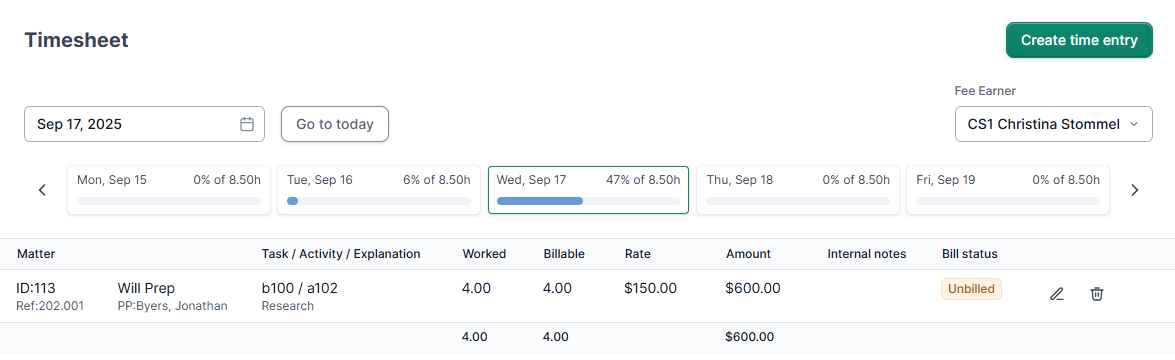
- Click the Timesheet menu in the main menu bar and choose Today from the list of options that appears. The Timesheet page appears.
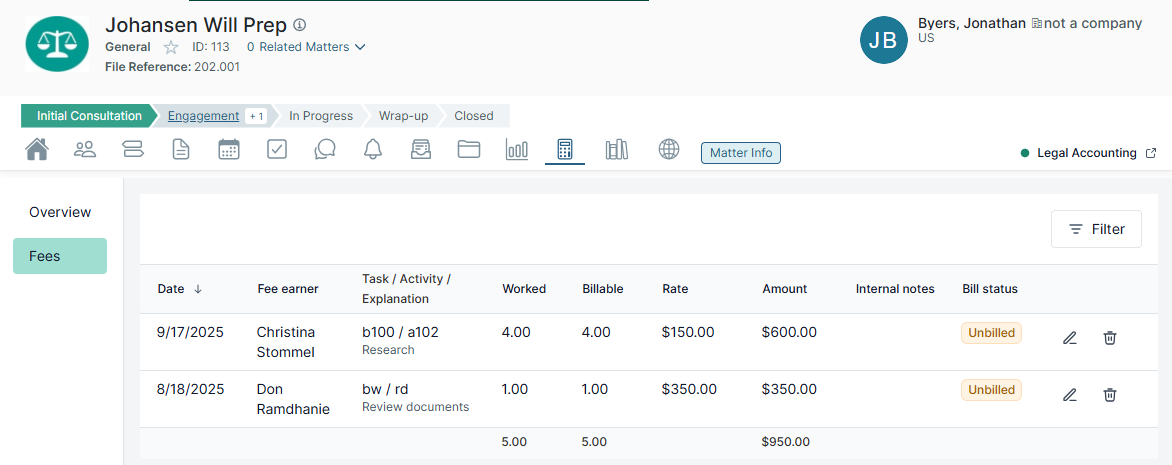
- View the matter the time entry is associated with. Then click the Billing menu icon and select Fees on the left side of the page. The matter’s Fees page appears.
- Click the Timesheet menu in the main menu bar and choose Today from the list of options that appears. The Timesheet page appears.
- Find the time entry in the list of entries you want to work with.
- Do one of the following:
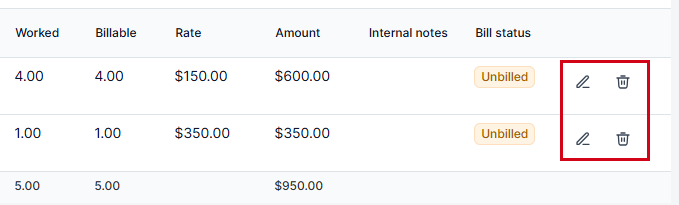
- Click the Edit icon to view the Edit Time Entry window where you can make changes. (See Creating a Time Entry Using the Legal Accounting and Practice Management Integration for help understanding what fields are available.)
- Click the Delete icon to delete the time entry.
Viewing or Editing Time Entries in Legal Accounting
There two ways to view or change time in Legal Accounting.
Option 1: To use File Manager:
- In Legal Accounting, click Contacts > File Manager.
- In the matter look-up field, find the matter.
- Click the Ledger tab.
- Locate the time entry and edit as needed.
Option 2: To use the Reports option:
- In Legal Accounting, click Reports and go to Other > Time.
- In the View field, select Time and then specify additional report parameters as needed.
- View and make the changes as needed.
NOTE: Time entry user permissions and settings are sourced from Legal Accounting.
Was this article helpful?
That’s Great!
Thank you for your feedback
Sorry! We couldn't be helpful
Thank you for your feedback
Feedback sent
We appreciate your effort and will try to fix the article